
When a hard drive fails or data suddenly disappears, your first reactions matter enormously. Unfortunately, the internet is full of "home remedies" that sound convincing but can actually destroy the last chance of saving your data.
At Datatech.is we regularly receive drives that could have been saved if the owner had not first tried a DIY "miracle fix" found online. Here we go through the most common mistakes, explain why they are extremely dangerous and what you should do instead.
Mistake #1: "Put the drive in the freezer"
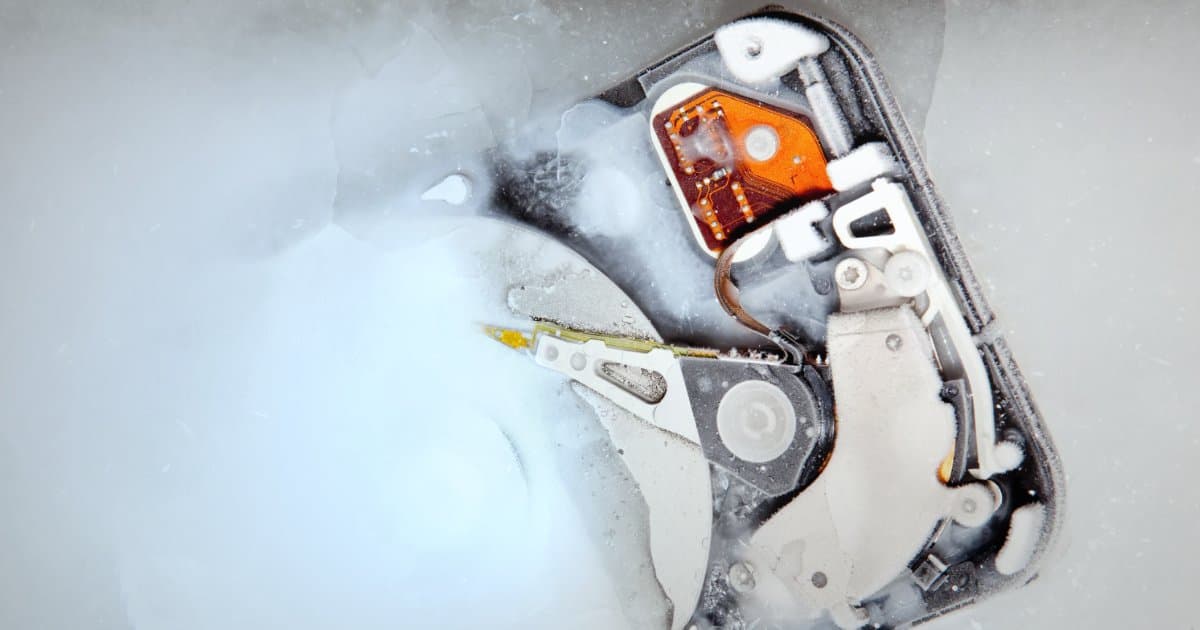
This is probably the most persistent myth in the world of data recovery. The idea is that cold contracts the metal parts of the drive and frees stuck components, allowing the drive to work long enough to get the data off.
Where does this idea come from? This advice does in fact have historical roots. In the 1980s and 1990s, when hard drives were much simpler and cruder in construction, cold could sometimes help temporarily if the problem was related to overheating or "stiction" (when the read head sticks to the platter).
Why this is extremely dangerous today Modern hard drives are precision instruments. The read heads fly only a few nanometres above the surface of the platters. Putting a drive in the freezer causes three kinds of damage:
Condensation: This is the biggest danger. When an ice-cold drive is taken out of the freezer and meets room temperature, moisture forms on the platters (like on a cold glass in summer). These water droplets are enormous compared with the gap between the heads and the platter. When the drive is started, the droplets act like a wall that the head slams into, destroying both the head and the data.
Uneven temperature change: Different metals contract and expand at different rates. This knocks the precise alignment of the read mechanism out of position.
Frozen lubricant: The fluid in the motor's bearings (Fluid Dynamic Bearings) thickens in the cold. This increases the load on the motor and can prevent the drive from reaching the correct rotational speed or damage it permanently.
The result is often that a drive that professionals could easily have saved becomes useless.
Mistake #2: Opening the drive at home
Sometimes people watch YouTube videos in which someone opens a hard drive to "fix" the read heads or move them. It looks simple, but it is one of the worst things you can do.
Why it destroys the drive Hard drives are assembled in so-called cleanrooms where the air is filtered to remove microscopic particles.
The gap between the read heads and the surface of the platter is about 5-10 nanometres.
A dust particle is about 10,000 nanometres.
A human hair is about 70,000 nanometres.
Opening a drive in an ordinary room is like throwing rocks into the mechanism. The moment you remove the cover, thousands of dust particles settle on the platters. When the drive starts up (it usually spins at 5400 or 7200 revolutions per minute), these particles cause what is called a "head crash". The read head ploughs through the dust and scrapes the magnetic coating off the platters. The data is then gone forever.
Mistake #3: Using software on a drive with a hardware failure
This is one of the most common mistakes! The drive clicks, the computer takes a long time to detect it, and the first reaction is to download a free "Data Recovery" program and let it scan the drive.
When can software be used? Software works well for logical errors. Examples: you accidentally deleted a file, formatted the drive, or the file system is damaged. If the drive itself sounds normal, it may be possible to try a software solution; otherwise it is not.
When is software dangerous? If the problem is mechanical (clicking, hissing, beeping, the drive dropping out and reappearing), software is extremely dangerous. The software repeatedly tries to read damaged areas. This forces failing read heads to work overtime, which causes more heat and more wear. It usually ends with the heads giving out completely and scraping the surface of the drive on the way.
If the drive makes an abnormal noise: Switch it off immediately. No software can repair failed or damaged hardware such as read heads.
Mistake #4: Hitting the drive
This sounds like a joke, but it is not. The myth still lives on that a "light knock" can free a stuck read head or get a motor going. On modern drives this is a recipe for destruction. A knock can cause the read heads to slam into the platters or the actuator arm to become bent. It takes less force than you think to ruin the precision of a drive.
Mistake #5: Swapping the circuit board (PCB)
Many people think that if the drive gets no power, it is enough to buy an identical drive and swap the green circuit board (PCB) on the underside.
Why doesn't this work any more? In the old days it worked. But modern drives store specialised calibration data (adaptives) in a ROM chip on the circuit board. This data is unique to each individual drive and contains information about the exact positioning of the read heads, defect lists and more. If you put the board from another drive onto yours, this information does not match. In the best case, nothing happens. In the worst case, the drive tries to "fix" itself with the wrong information and overwrites important system data, making recovery very difficult.
Mistake #6: Continuing to use the computer
If you have accidentally deleted data or the drive is behaving strangely, the worst thing you can do is keep using the computer "just a little longer".
Overwriting: The operating system is constantly writing log files and temporary data. New data may be written on top of the data you are trying to save.
SSDs: If you have an SSD, the TRIM command is likely clearing away the data in the background while the computer is switched on (see our article on TRIM for more).
What should I do instead?
If you are facing data loss, the right steps are simple:
Stop using the drive immediately: Switch off the computer or disconnect the drive.
Listen: If the drive clicks, hisses or beeps, do not connect it to power again.
Don't rely entirely on Google or YouTube: Much of the advice applies to technology that is 20 years old.
Turn to professionals: If the data is important, let professionals handle the job. At Datatech.is we use specialised equipment (such as PC-3000) that can communicate with the drive at a "low-level" stage and control the read heads precisely in order to recover data without causing further damage.
Remember: The best way to avoid having to take your drive in for data recovery is to make a backup. The 3-2-1 rule is gold: three copies, on two media, one off-site.
But if the accident has already happened, we are here for you. Datatech.is: Data recovery specialists.
Need help with data recovery?
The first step is to send us a service request. Get in touch with us today.
Contact us